Users and passwords
Users in the top navigation is where the day’s credentials come from. It is an administrator-only screen.
One account per role, not per person
Section titled “One account per role, not per person”Your organization has a fixed set of accounts: one Admin Worker, one Commissar, one Moderator, one for each support job, and one per judge seat. Whoever is doing that job at your show signs in with that job’s account. You do not create an account per volunteer, and you do not need to.
That shapes what this screen can and cannot do:
| You can | You cannot |
|---|---|
| Generate fresh passwords for any set of accounts | Create a new account |
| Set one account’s password by hand | Delete an account |
| Change your own password | Change an account’s role |
| Correct a person’s first and last name | Change an account’s e-mail address |
The four things on the right are your ICN operator’s job. If you need a sixth judge seat, or an account retired, ask them. It is a quick change, but it is not one you make from the app.
The Users screen
Section titled “The Users screen”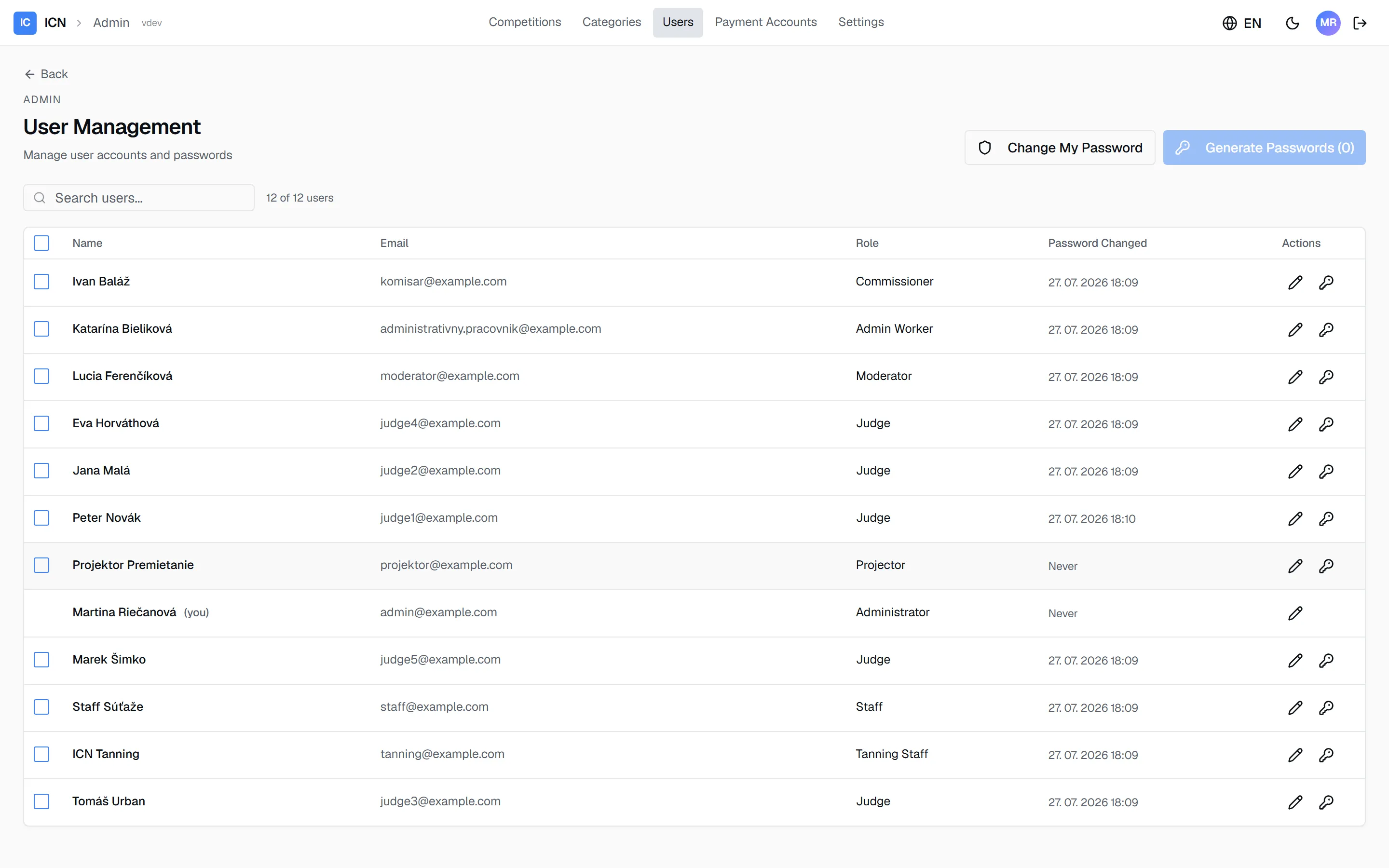
Every account, its role, and one column that matters more than it looks: Password Changed. That is how you tell, at a glance, whether the credentials in circulation are this weekend’s or last season’s. An account that has never had a password generated reads Never.
Search filters on name, e-mail, and role, and the line under the toolbar keeps count (3 of 12 users), so a filtered list never looks like the whole list.
Where the day’s passwords come from
Section titled “Where the day’s passwords come from”Clicking Start Presentation is what issues them. The transition rotates the crew accounts and this competition’s judges, then shows you the dialog with the new set. Those are the passwords the crew will sign in with, so that dialog is the one to download or print from.
So the simple order is: get everything else ready, click Start Presentation, and take the credentials from the dialog that appears.
The Manage Passwords route
Section titled “The Manage Passwords route”⋮ → Manage Passwords in the competition header issues passwords to a chosen set of people at any other moment.
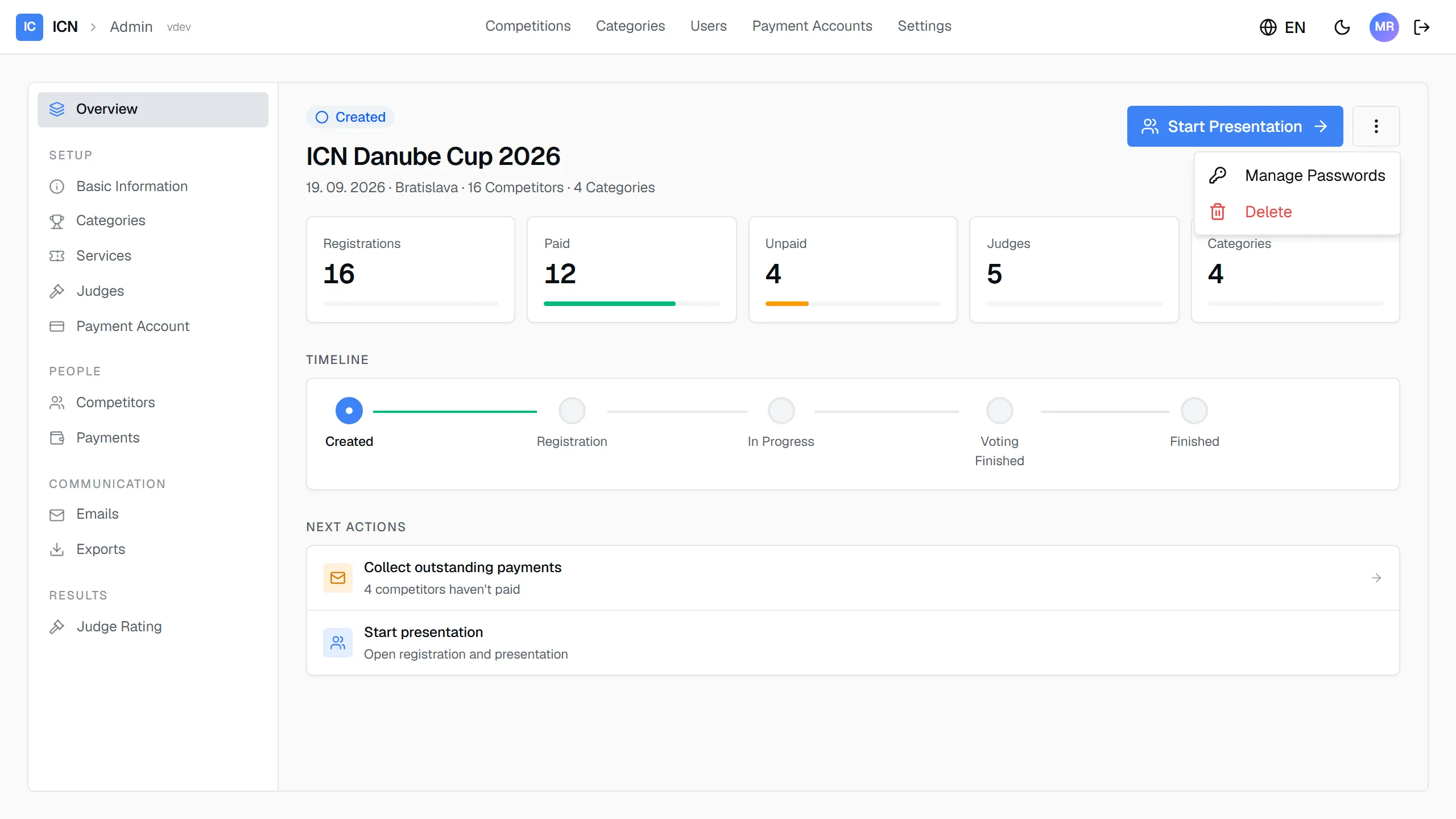
It is not just a shortcut to Users: it arrives with this competition’s judges already ticked, so you are not hunting down today’s panel row by row.
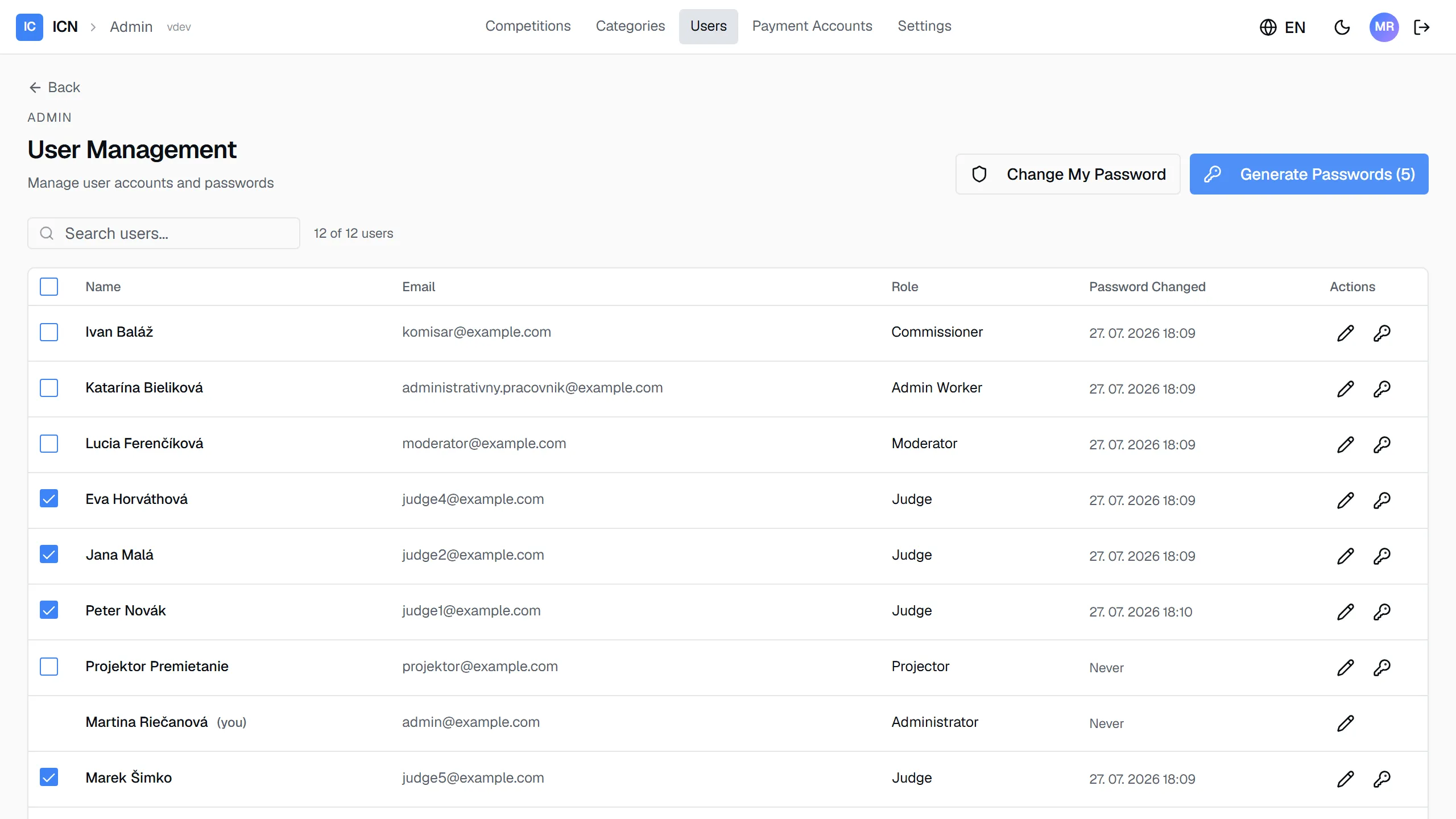
Tick anyone else who needs credentials, such as the commissar, the moderator and the registration desk, then press Generate Passwords. The button carries the count, so you can check the selection before you commit.
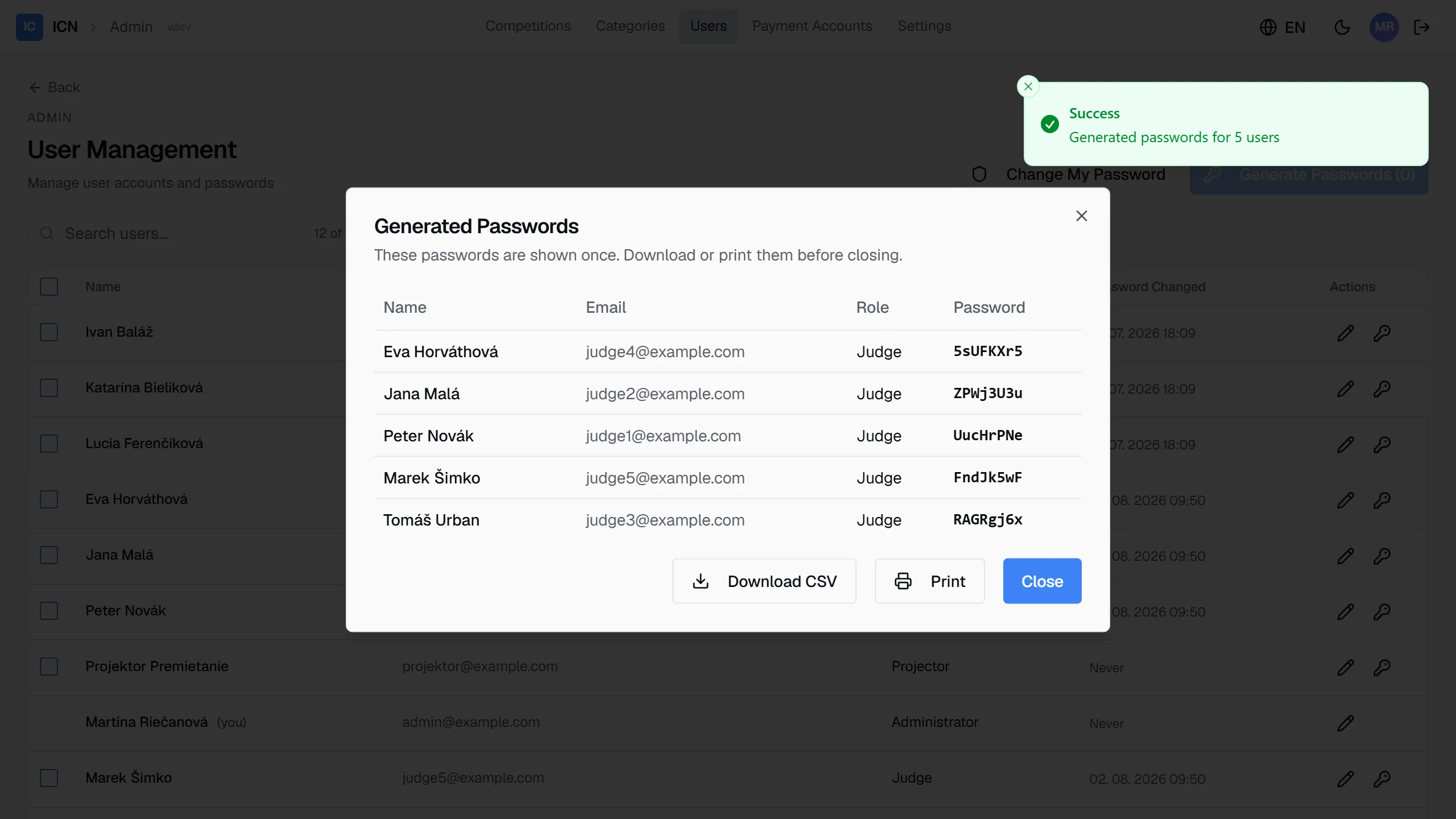
This dialog is the only time these passwords are ever shown. They are eight characters, and what the app keeps is a hash, so nobody, including your operator, can read one back. Before you close it, do one of:
- Download CSV saves
passwords-competition-<number>.csv, which opens in Excel or Sheets. - Print gives you a clean table, one row per person. This is the one to use if you hand out slips at the desk.
Close it without doing either and the passwords are simply gone. That is not a disaster, because generating again replaces the old set, but it does mean every account you just rotated is one nobody has the password for yet.
Once the competition is in Presentation, this is the safe moment to use it: nothing rotates again until you mark the show Finished. Reach for it when a judge is added to the panel after the doors opened, when somebody missed the hand-out, or when a whole group needs re-issuing.
Manage Passwords only appears while the competition is in Created or Presentation. Once the show is in progress the entry is gone. Reach the same screen from Users in the top navigation if you need it later.
Generating versus resetting
Section titled “Generating versus resetting”Two different tools, and the difference is who picks the password:
| Generate Passwords | Reset Password | |
|---|---|---|
| Picks the password | The system, at random | You do |
| How many at once | Any number of accounts | One account |
| Where you see it | Once, in a dialog you can download or print | You already know it, you typed it |
| Use it for | Re-issuing to a group once the show is open | One person who is locked out mid-show |
Neither is how the day normally starts. Starting Presentation issues the first set on its own.
Resetting one account
Section titled “Resetting one account”The key icon on a row sets that account’s password by hand.
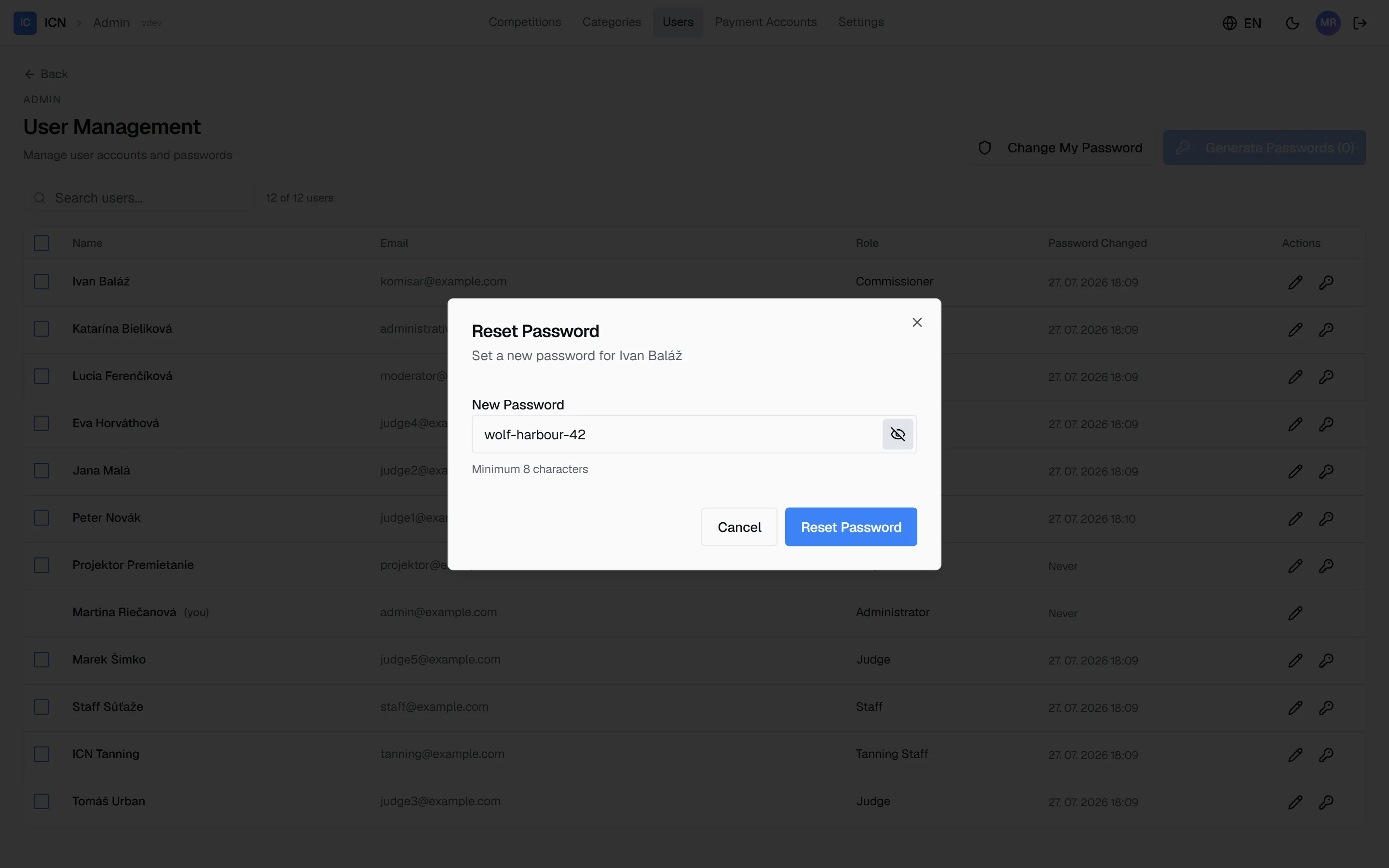
Minimum eight characters. The eye on the right reveals what you typed, which is worth using: you are about to read this out loud to somebody, and a typo here locks them out rather than in.
This is the fix when a judge turns up at the second category saying their password does not work. Reset it, tell them the new one, done. No need to rotate the whole crew.
Changing your own password
Section titled “Changing your own password”Change My Password, top right, is the only account you change by proving you know the current one.
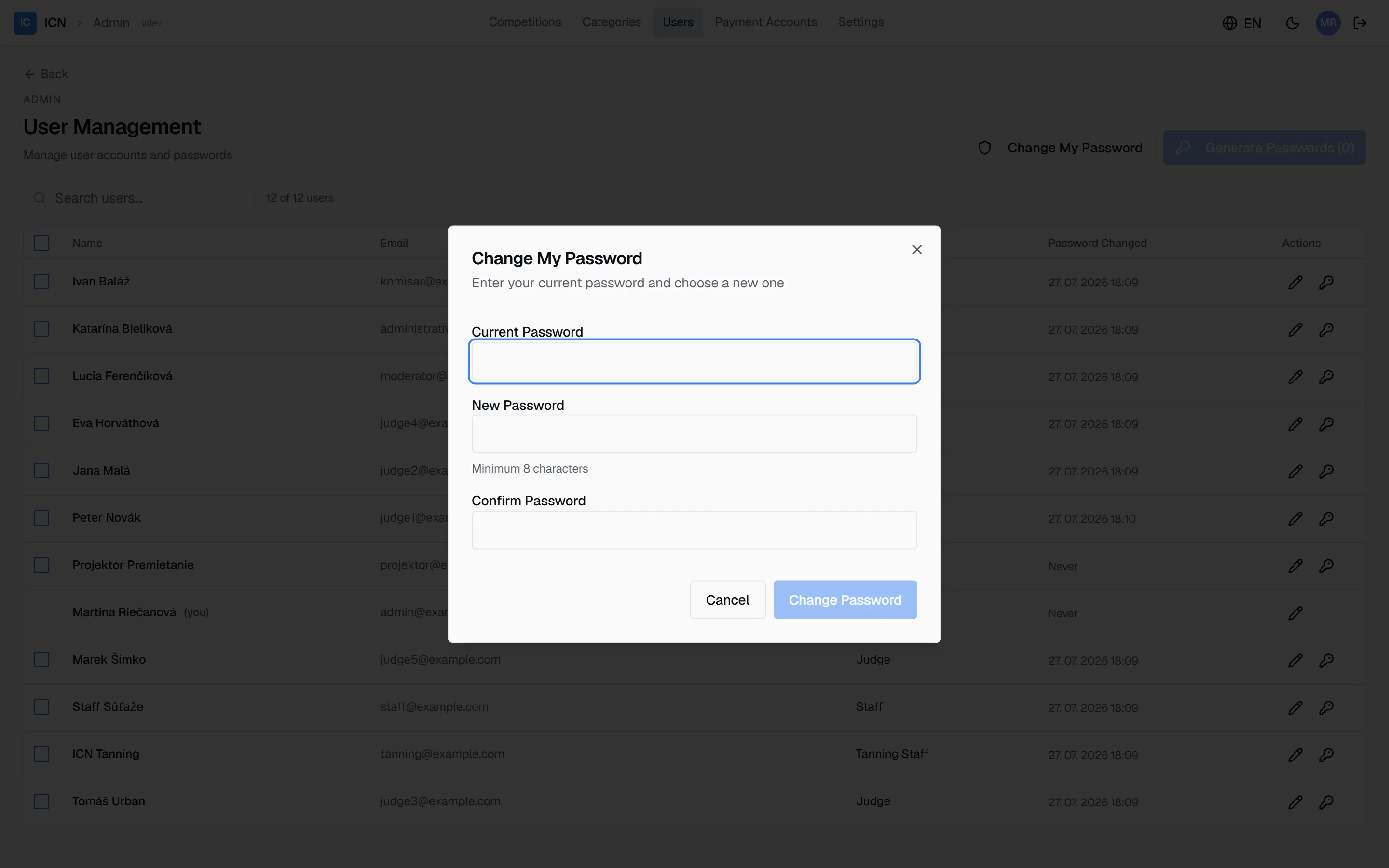
Current password, new password, confirm. Minimum eight characters, and the two new fields have to match before the button becomes available.
Your administrator password is never rotated automatically. Nothing in the competition lifecycle touches it, which is deliberate: the one account that can fix everything else should not change under you mid-show.
Correcting a name
Section titled “Correcting a name”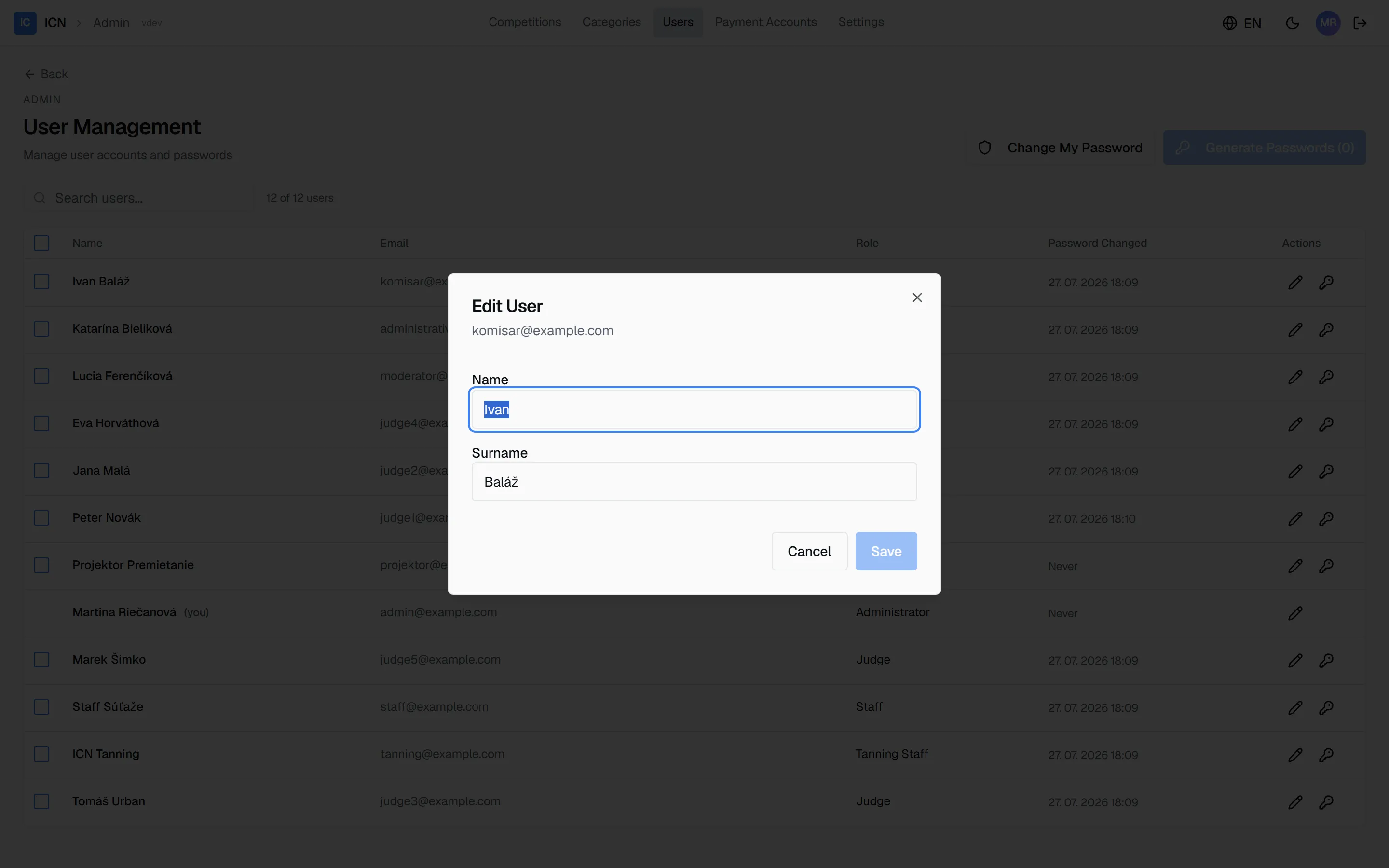
The pencil edits first name and surname only. The e-mail is shown for identification and cannot be changed here, and neither can the role. Use it when the person behind a seat changes between seasons and the name on the judging sheets should follow.
What automatic rotation covers
Section titled “What automatic rotation covers”Two moments in the competition lifecycle rotate passwords on their own, and show you the same dialog:
- Entering Presentation. The crew needs credentials, so they are issued.
- Marking the competition Finished. The credentials the crew used are retired.
Rotation covers the Admin Worker, Commissar, Moderator, Staff and Tanning accounts, plus the judges assigned to that competition. It does not touch your administrator account, and it does not touch judges who were not assigned: a judge seat sitting idle this weekend keeps whatever password it had.
Only an administrator can trigger either point. An admin worker can move presentation along to judging, but the rotation moments are not theirs.
Rotation is unconditional. It does not check whether those accounts were given passwords five minutes ago, so anything you issued by hand beforehand is replaced. That is the whole reason to let Start Presentation hand out the first set rather than doing it yourself first.
If something goes wrong
Section titled “If something goes wrong”- A judge cannot sign in. They are almost certainly holding a password from before the last rotation. Either reset that one account and tell them the new password, or check Password Changed on their row against when you last handed credentials out.
- The passwords I handed out stopped working within minutes. They were issued before Start Presentation, and starting Presentation rotated the same accounts again. Use the set from the dialog that appeared when you started Presentation.
- I closed the dialog before saving the passwords. Select the same people and generate again. Generating twice is harmless; the newest set is the one that works.
- Somebody is missing from the list. Accounts are fixed per organization; there is no self-registration and no “add user” here. Ask your ICN operator to add the seat.
- Manage Passwords is not in the ⋮ menu. The competition has moved past Presentation. Open Users from the top navigation instead.
- A password I set by hand is rejected. Minimum eight characters, and the field will not submit below that.
Guide version 1.0.18(sha-adb4952)