Competition day
The day in three transitions
Section titled “The day in three transitions”The status badge and the primary action button in the competition header drive the whole day.
- Created → Registration. Click Start Presentation when doors open. This unlocks the check-in screen.
- Registration → In Progress. End the presentation once everyone is checked in. Judging can begin.
- In Progress → Voting Finished → Finished. Happens as voting completes and you lock the final results. See Results & exports.
Each transition is one click, and the timeline on the overview pane tracks where you are. The header button carries the next transition, with one exception: while the competition sits in Registration the header leads to check-in instead, because that is the screen you keep coming back to. The transition out of Registration is then ⋮ → Start Competition in the header, or End Presentation on the check-in screen itself.
The first click also hands out the passwords
Section titled “The first click also hands out the passwords”The crew signs in with shared role accounts, and Start Presentation reissues them: the commissar, the moderator, the registration desk, the support roles, and every judge assigned to this competition. A dialog appears with the new set, with Download CSV and Print. Each password is shown once and cannot be shown again, so take them from that dialog before you close it. Somebody needs to be holding the list before the first judge asks for it.
Do not issue passwords by hand just before you click. The rotation is unconditional: it does not notice that you generated a set two minutes ago, so anything already handed out stops working the moment the competition enters Presentation, without a warning. Let the transition issue the first set.
For a late judge, or anyone who missed the hand-out, use ⋮ → Manage Passwords in the header after the competition is in Presentation. Nothing rotates again until you mark the show Finished.
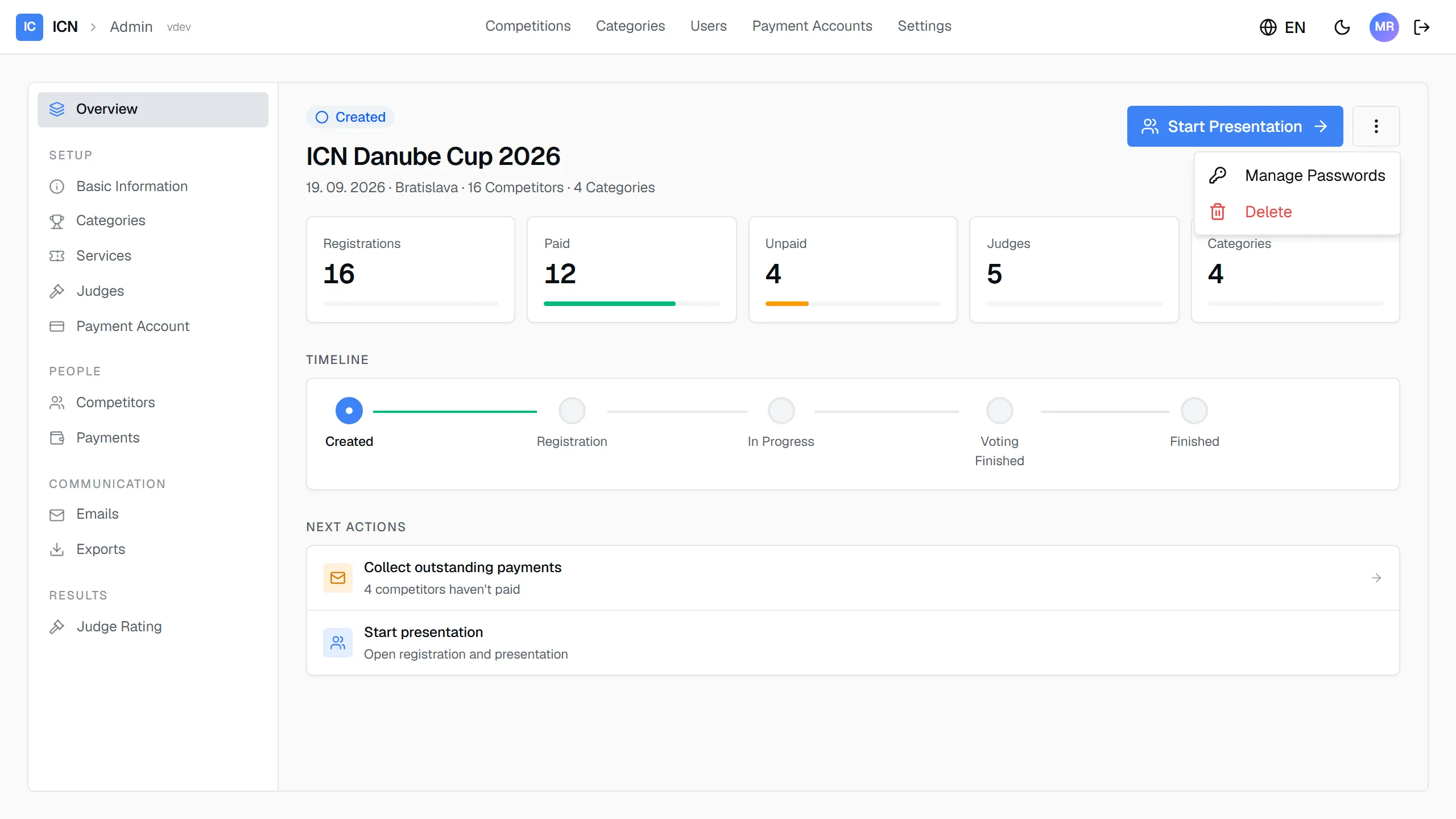
It opens the Users screen with this competition’s judges already ticked. Full detail in Users and passwords.
How the statuses work
Section titled “How the statuses work”A competition has five statuses, and it only ever moves forward:
| Status | What it means | What it unlocks |
|---|---|---|
| Created | Setup. Categories, judges, fees, registrations. | Everything is editable; nothing is live. |
| Presentation | Registration desk is open. | Check-in, starting numbers, walk-ins. |
| In Progress | The stage is running. | Commissar, judges, moderator. |
| Voting Finished | All categories judged. | Results and exports. |
| Finished | The show is closed. | Read-only; reopening is audited. |
There is no Cancelled status. A competition that will not happen stays in Created, and can be deleted, which a running one cannot.
Only one competition runs at a time
Section titled “Only one competition runs at a time”You cannot start Presentation on a second competition while another one is still open. “Open” means any competition sitting in Presentation, In Progress, or Voting Finished. Try it and the system refuses, naming the competition that is in the way.
This is deliberate: the crew accounts are shared, and the stage roles (commissar, judges, moderator) all resolve “the competition that is running now”. Two live competitions would make that ambiguous.
The lock releases when the earlier competition reaches Finished. So if you are setting up next month’s show and the button will not move, look for last weekend’s competition still parked in Voting Finished, and finish it.
Everything before Presentation is unaffected: you can prepare as many competitions in Created as you like, in parallel.
Check-in
Section titled “Check-in”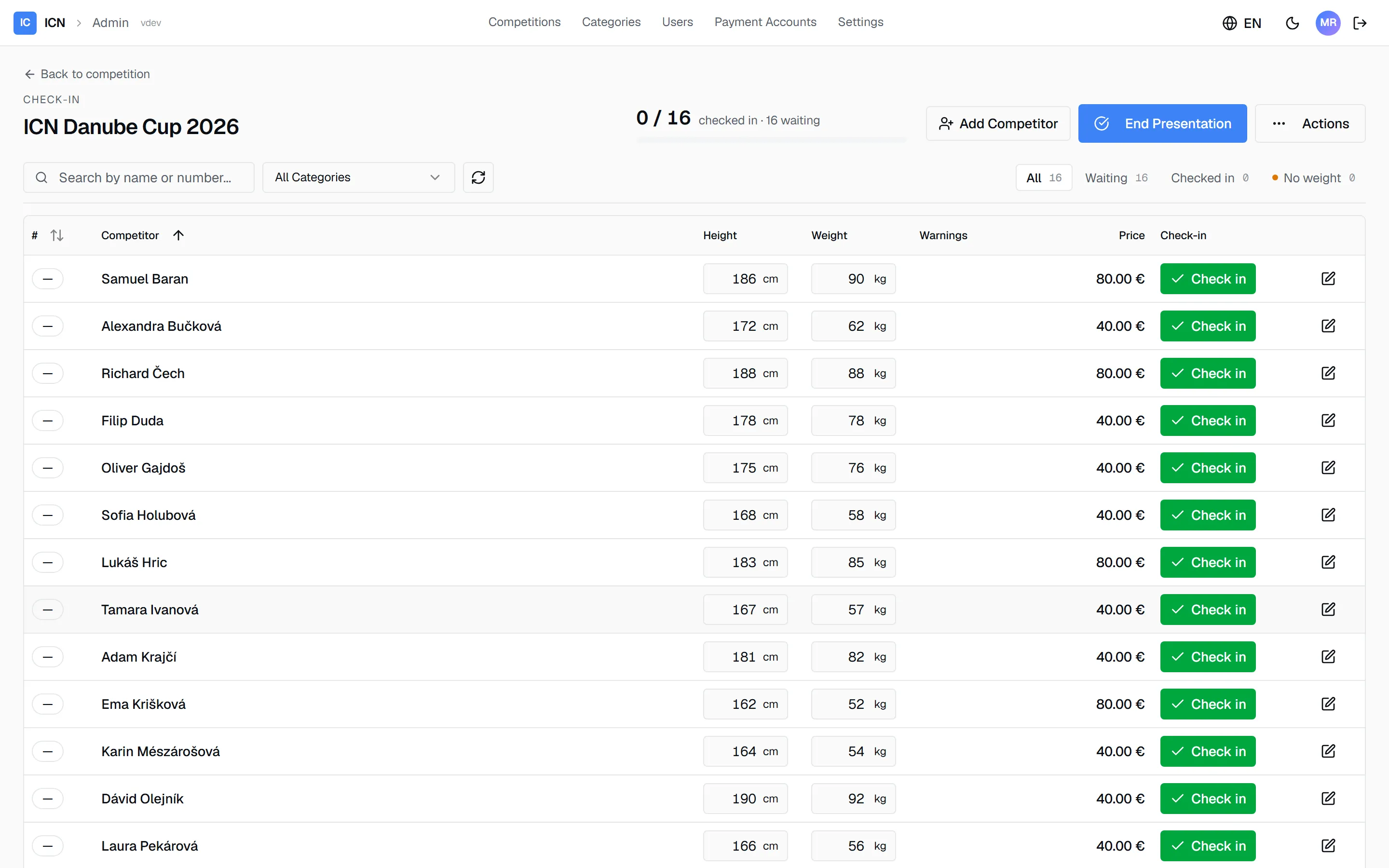
The check-in table is the working screen for the registration desk, and Admin Workers see the same screen. Once the competition is in Registration there are two ways in:
- Check In Competitors, the primary button in the competition header.
- The Check-in link on that competition’s row in the competitions list, for when you come back to it later in the day.
Back to competition at the top left returns you to the competition.
The header shows how many competitors are checked in out of the total, with a progress bar. Every registered competitor is a row with height, weight, warnings, and fee total. Search and the category filter sit on the left above the table; the All, Waiting, Checked in and No weight tabs on the right narrow the list, each with its count.
As athletes arrive:
-
Type the height or weight straight into the row. The value saves as soon as you leave the field. Measurements are optional; a competitor without them can still be checked in.
-
Press Check in on the row to mark the competitor present. Present athletes receive their starting number, the number judges see on stage. Undo next to Checked in reverses it.
Check in also saves anything still typed in the row, so one press is enough. See Weighing in, then checking in.
-
The pencil opens the full competitor detail for bigger corrections. Add Competitor handles walk-up registrations. Both are shown step by step in The registration desk.
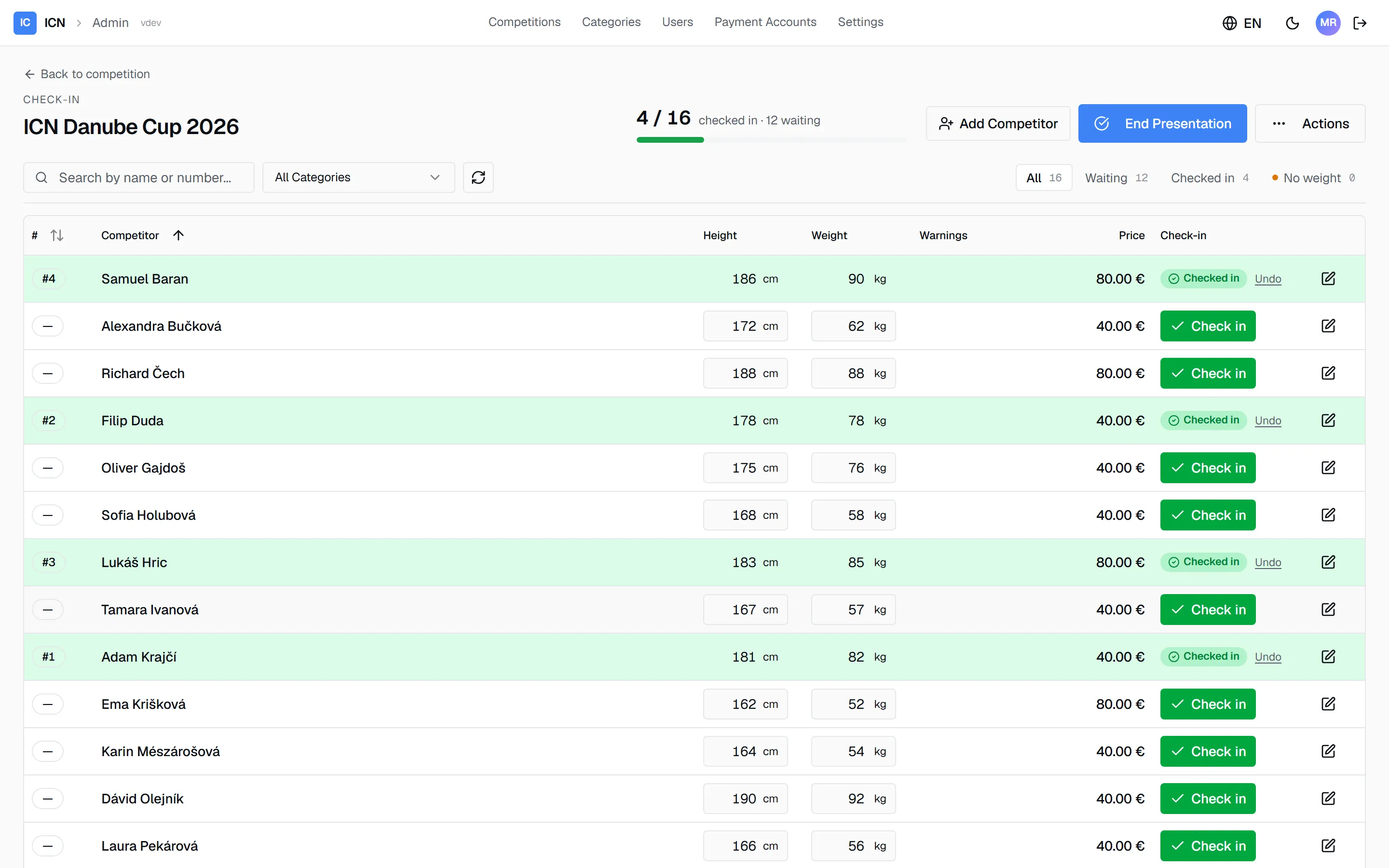
Checked-in competitors turn green and show their starting number on the left. The header counts up (4 / 16) until everyone who showed up is in. The Warnings column flags a weight over a category limit (+6.0 kg over) and, once a competitor is checked in without one, No weight. Neither blocks anything; the No weight tab lists who still needs weighing.
Handing over to the stage
Section titled “Handing over to the stage”When check-in is done, click End Presentation on the check-in screen. Prefer that route: it cancels the categories nobody checked in for. ⋮ → Start Competition in the competition header makes the same status change but only cancels categories with no registrations at all. The competition moves to In Progress and the stage takes over: the Commissar starts each category in running order, judges vote on their phones, the Moderator announces. Your admin view stays live; the overview and results panes update as categories finish.
Guide version 1.0.18(sha-adb4952)