The registration desk
Your role
Section titled “Your role”The Admin Worker runs the registration desk on competition day: checking competitors in, handing out starting numbers, and pulling results once the show ends. Setup stays with the administrator; this account sees only the day-of work.
Signing in
Section titled “Signing in”- Open your organization’s instance in the browser, for example
icn-system.eu. - Sign in with your admin worker account. Credentials come from your administrator.
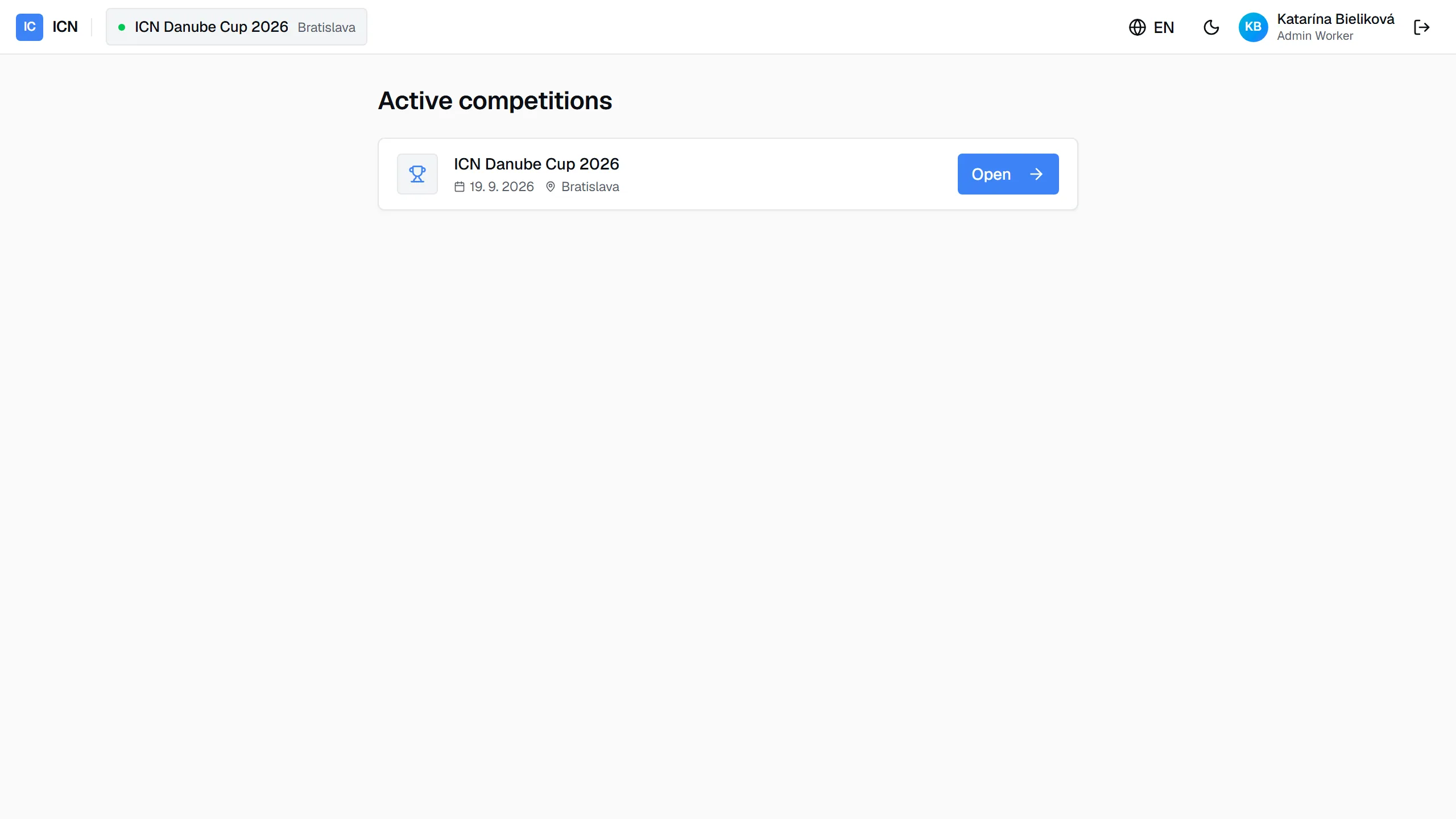
Your dashboard lists competitions that are open for presentation. Before the administrator opens one, the dashboard says so and waits. It updates on its own; leave it open.
To sign out, worth knowing on a tablet that stays at the desk, use the arrow icon in the top-right corner, after the language and theme controls. See Getting started.
The password changes with each show. It is reissued when the administrator opens a competition and again when they close it, so ask them for the current one at the start of the day. If it stops working while the queue is moving, they can reset your account in a few seconds. See Users and passwords.
Check-in
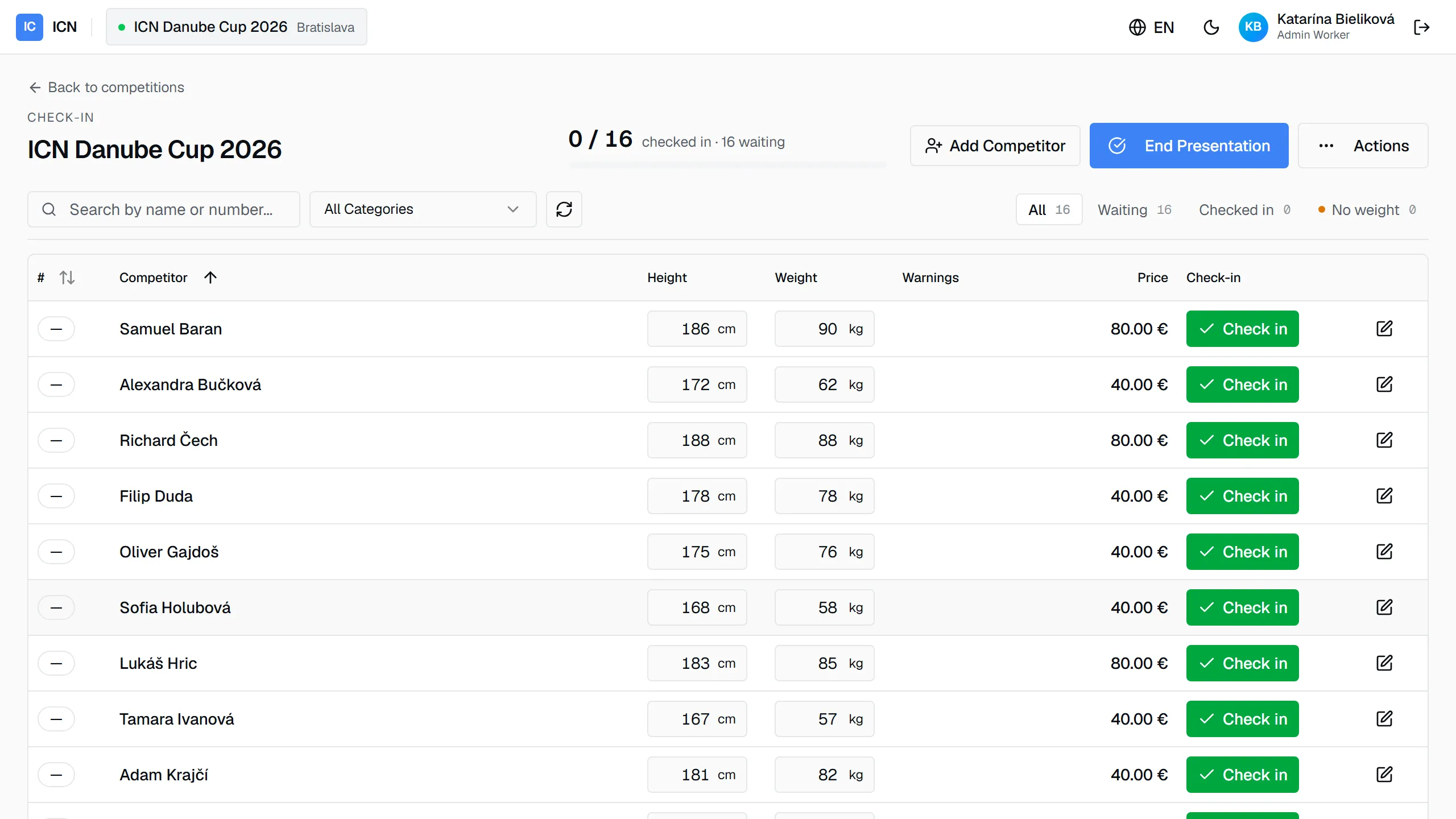
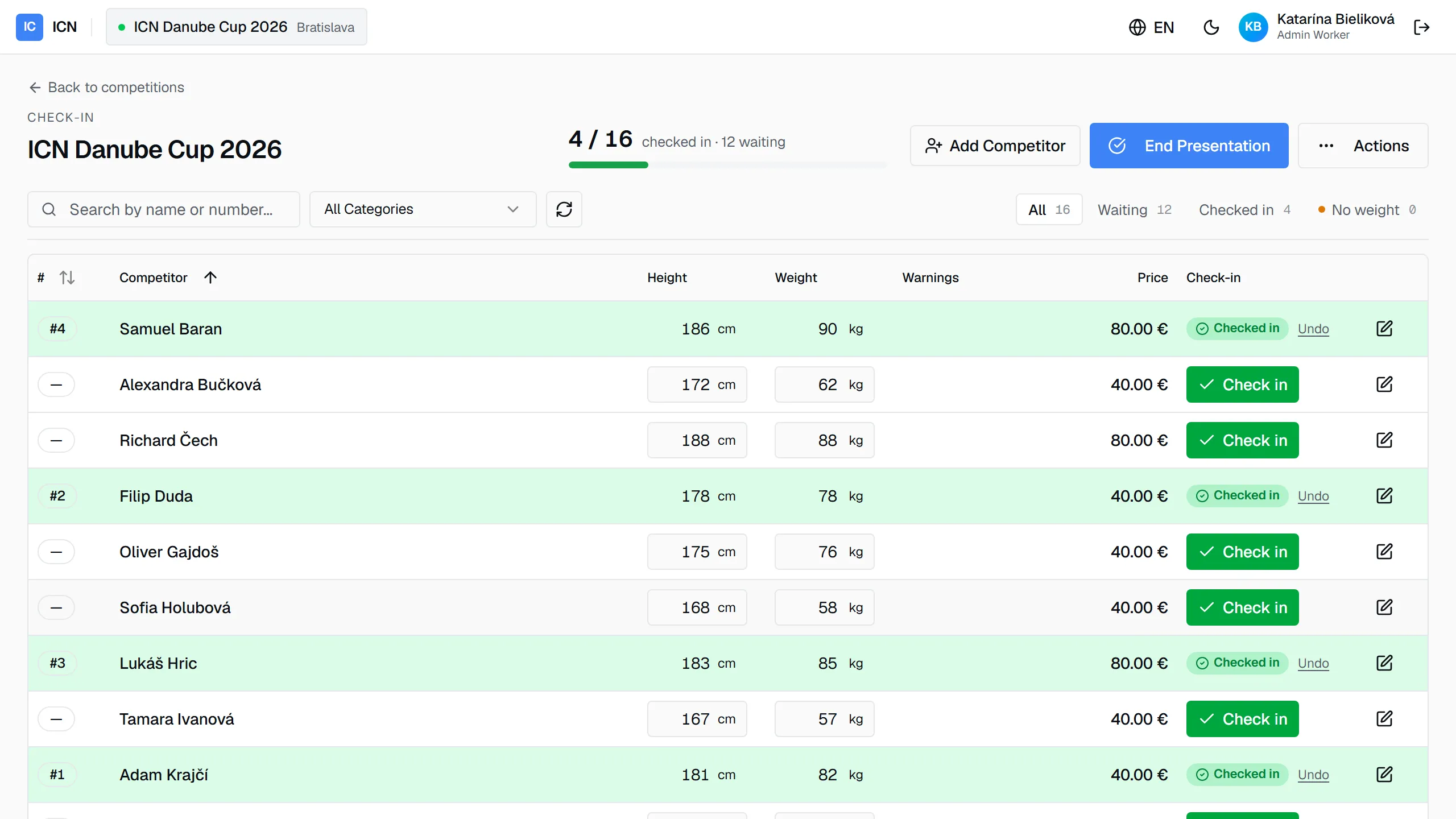
Section titled “Check-in”Open the competition to reach the check-in screen. It is the same screen the administrator uses, described step by step in Competition day: find the competitor, mark them present, and the starting number is assigned automatically. The count and bar at the top track progress as the queue moves.
Weighing in, then checking in
Section titled “Weighing in, then checking in”Almost every competitor needs their weight corrected at the desk. You do not need the dialog for that: height and weight are fields right in the row. Type the value and move on; it saves as soon as you leave the field. There is no save button.
- Type the real weight into the row.
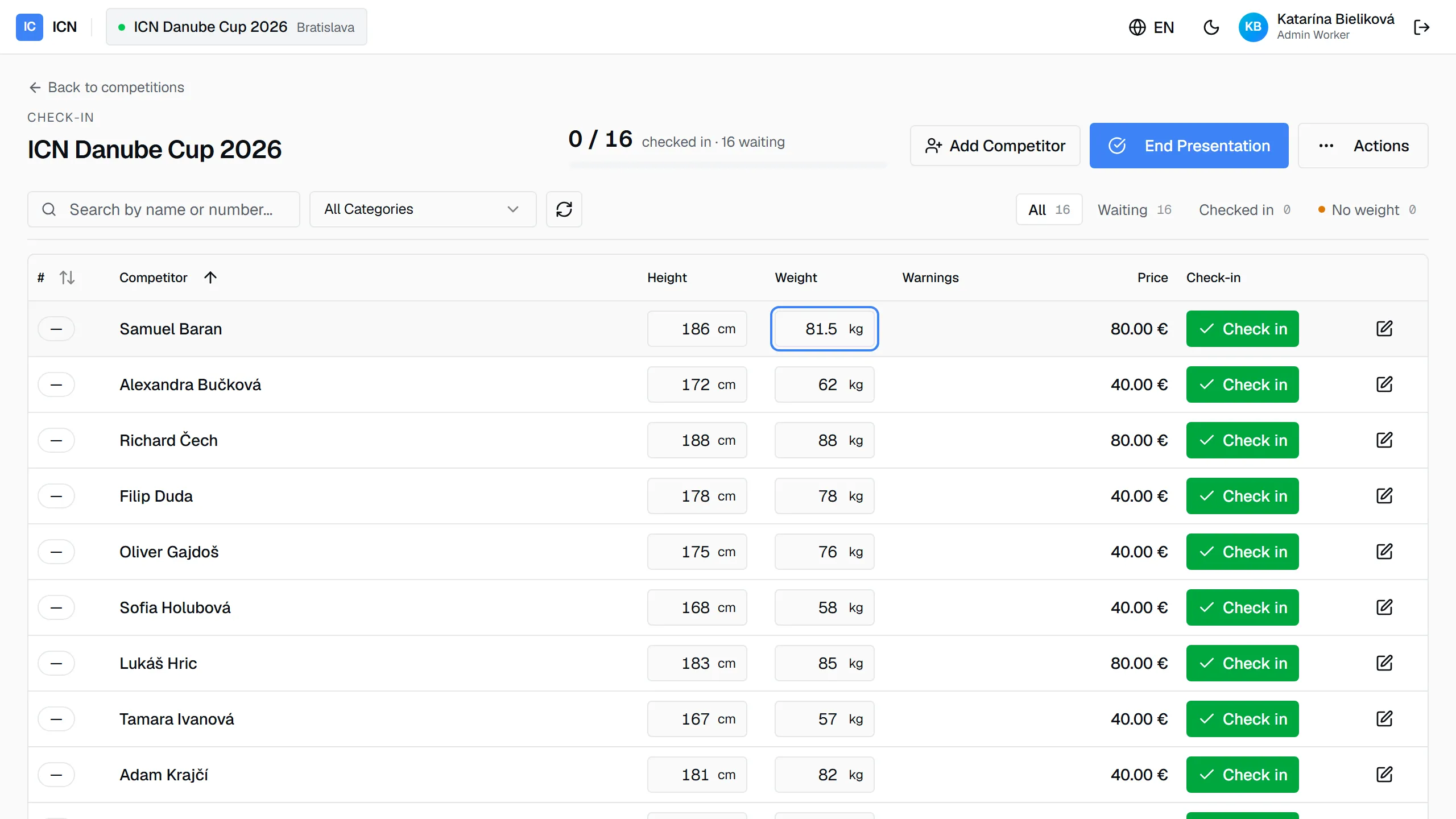
- Leave the field (click elsewhere, press Tab, or press Enter). A short green ✓ appears inside the field: the weight is stored. Enter also moves you to the row’s Check in button.
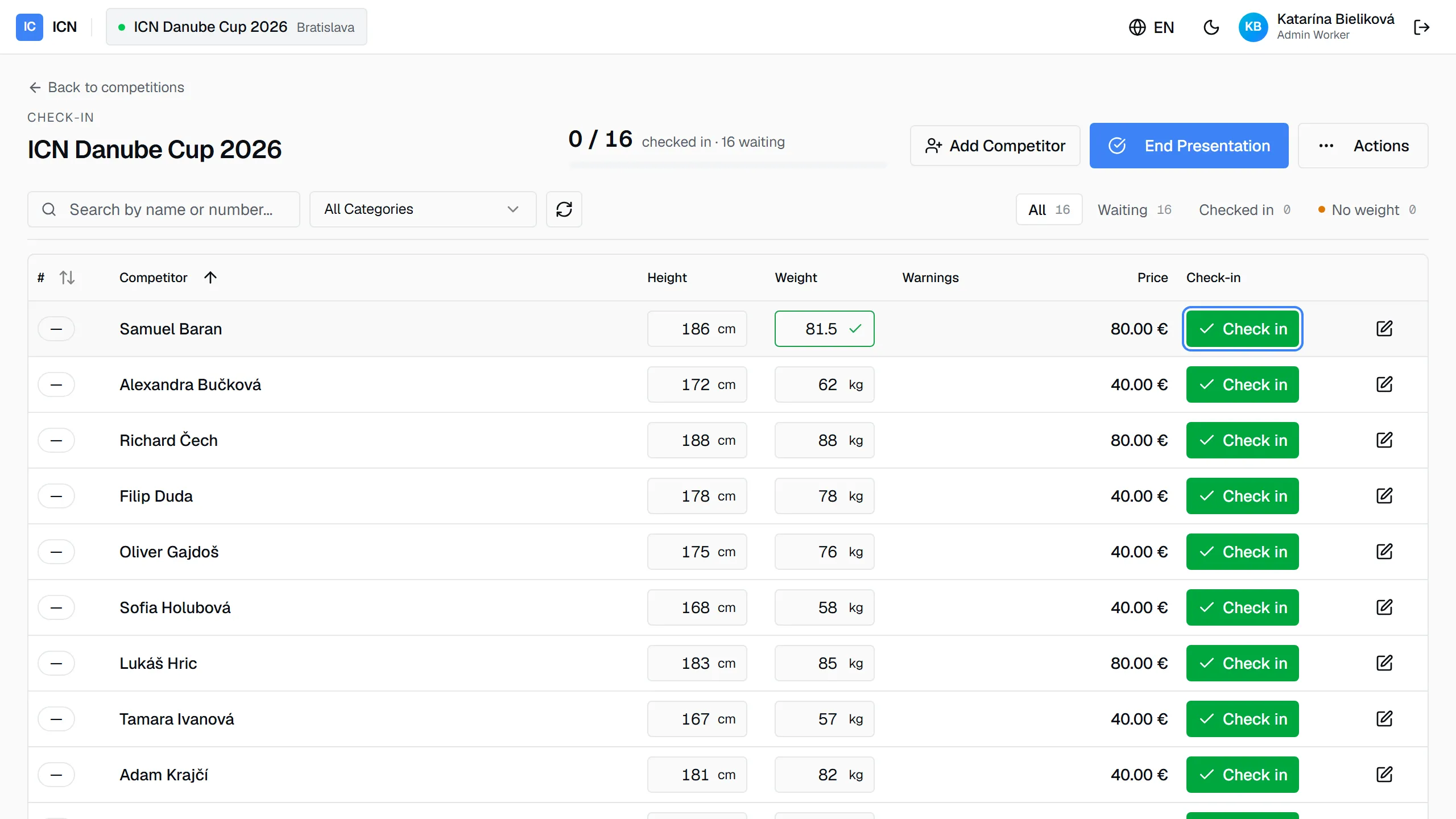
- Press Check in. The competitor is checked in and the starting number is assigned. If you press it while a value is still typed, it saves the value first.
Measurements are optional. A competitor who was not weighed can still be checked in; fill the weight in later. If the weight puts the competitor over a limit of one of their categories, the Warnings column says by how much (+6.0 kg over). You can still check them in.
Undo next to Checked in marks the competitor absent again. The notification that pops up after each check-in has the same Undo.
The competitor at the desk
Section titled “The competitor at the desk”The pencil on a row opens Edit Competitor, the same dialog the administrator uses on the Competitors tab. This is where the desk work happens while the athlete stands in front of you:
- Name, e-mail, country, sex: fix a typo on the spot.
- Height and Weight: both optional. If the weight puts the competitor over a limit of one of their categories, the dialog warns you on the spot; you can still save.
- Categories and Services: last-minute changes are normal at the desk. Add the category they decided on this morning or the tanning they want to order.
The buttons stay pinned at the bottom of the dialog however long it gets. For a competitor who is not checked in yet there are three: Cancel, Save (keeps them waiting), and the green Save & check in, which writes everything and checks them in with one press. For a competitor already checked in, Save alone.
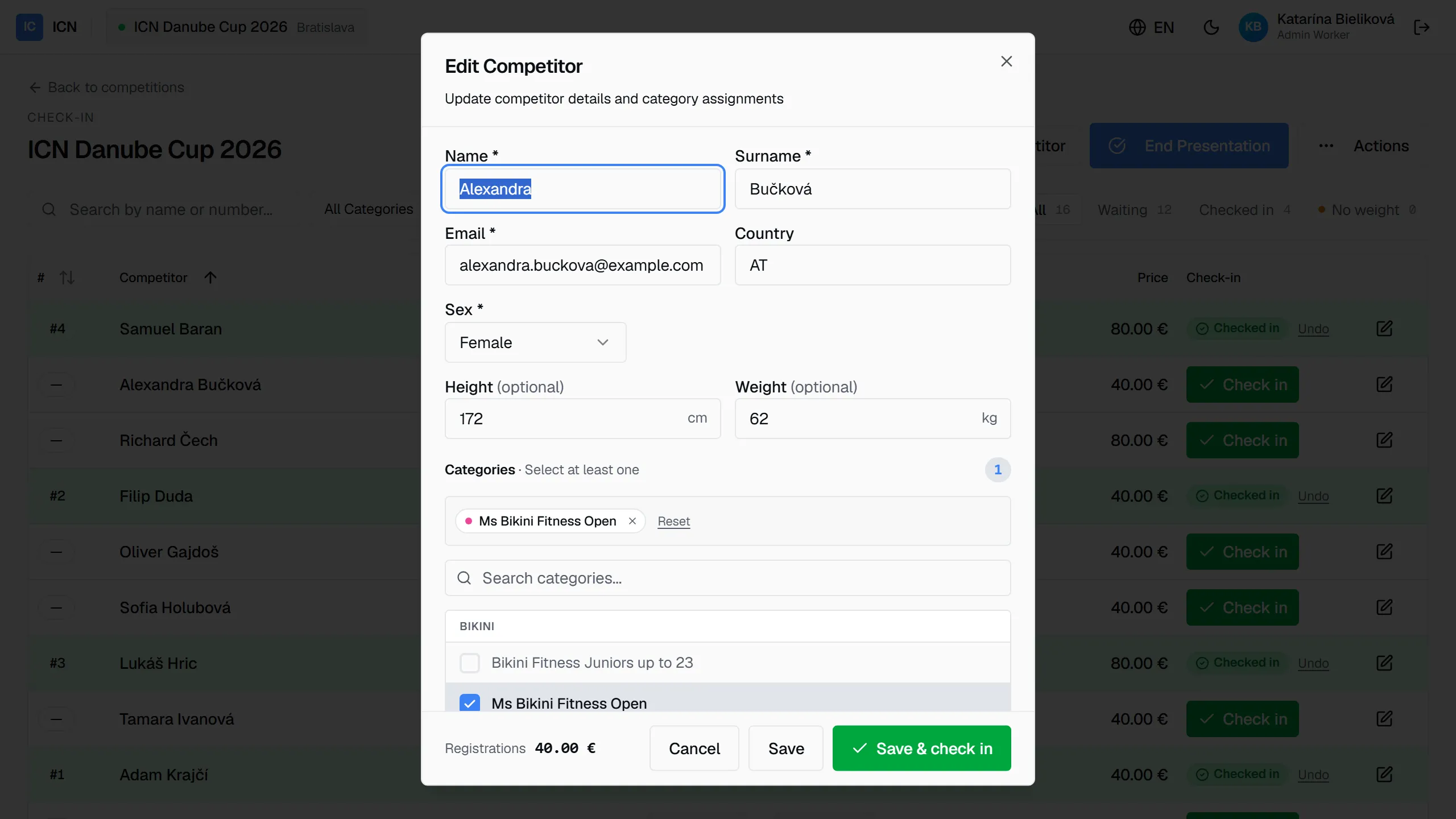
The whole exchange takes a few seconds once the queue is moving:
Walk-ins
Section titled “Walk-ins”Add Competitor registers someone who shows up without prior registration. The dialog takes the minimum: name, surname, e-mail, sex, and categories. The next free starting number is assigned automatically; measurements and services are set right after, during their check-in.
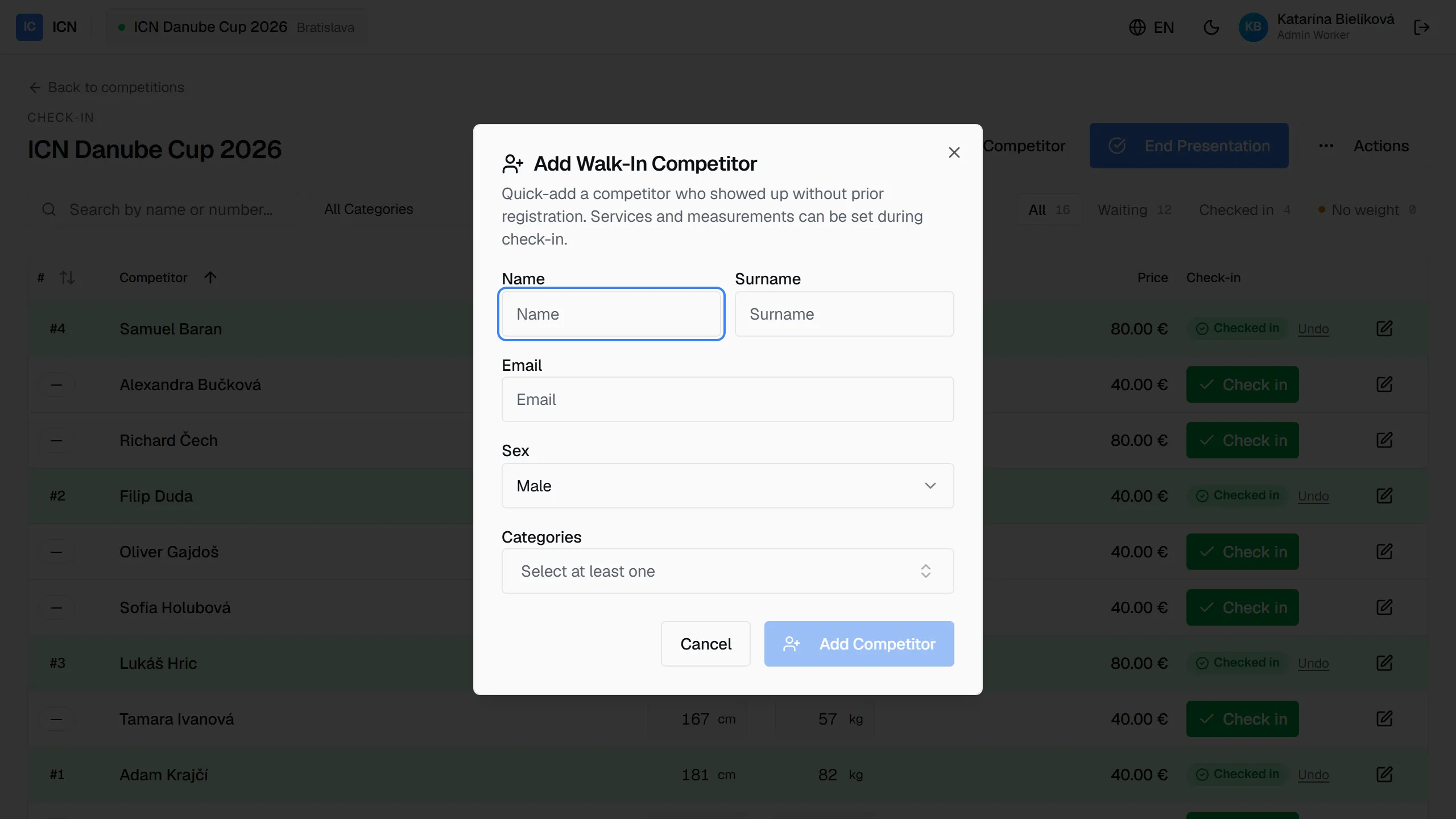
After the show
Section titled “After the show”Once judging ends, the competition’s results and exports open from the same workspace the administrator uses. Placements and result sheets are covered in Results & exports.
If something goes wrong
Section titled “If something goes wrong”- A competitor is not in the list. They were never registered. Add them as a walk-in.
- Someone was checked in by mistake. Press Undo next to Checked in on their row. The count at the top corrects itself.
- The dashboard stays empty. The administrator has not opened the competition for presentation yet. The list fills on its own when they do.
Guide version 1.0.18(sha-adb4952)